 Ether Lin
The Linux system running on the ReMarkable 2 makes it relatively easy to manage from a computer. Below are some tips for managing your ReMarkable 2 on a Mac.
SSH into your ReMarkable 2 from the MacBook
-
Connect your ReMarkable 2 to your MacBook using a USB cable.
-
Open the Terminal on your Mac. You can do this by pressing command⌘ + space, typing terminal, and pressing Enter.
-
Enter the following command in Terminal:
ssh -D 1337 root@10.11.99.1 -
Press Enter. You will be prompted with:
root@10.11.99.1's password:If you instead see several lines ending with:
RSA host key for host1 has changed and you have requested strict checking. Host key verification failed.then run:
ssh-keygen -R 10.11.99.1Press Enter, then repeat the SSH command above.
If you see a message ending with:
Are you sure you want to continue connecting (yes/no/[fingerprint])?type yes and press Enter.
-
Enter the password of your ReMarkable 2. You can find it by navigating to Settings → Help → Copyright and licenses → General information on the device. The password is at the bottom of the page in bold, usually consisting of 10 characters. Type the password manually into Terminal. The characters will be invisible. Press Enter when done.
-
If the SSH connection is successful, your Terminal should display something like the following:

Access your ReMarkable 2 with Cyberduck
-
Download Cyberduck from the official website and install it.
-
Open Cyberduck. Click File in the upper-left corner and select Open Connection…. A new window will appear:
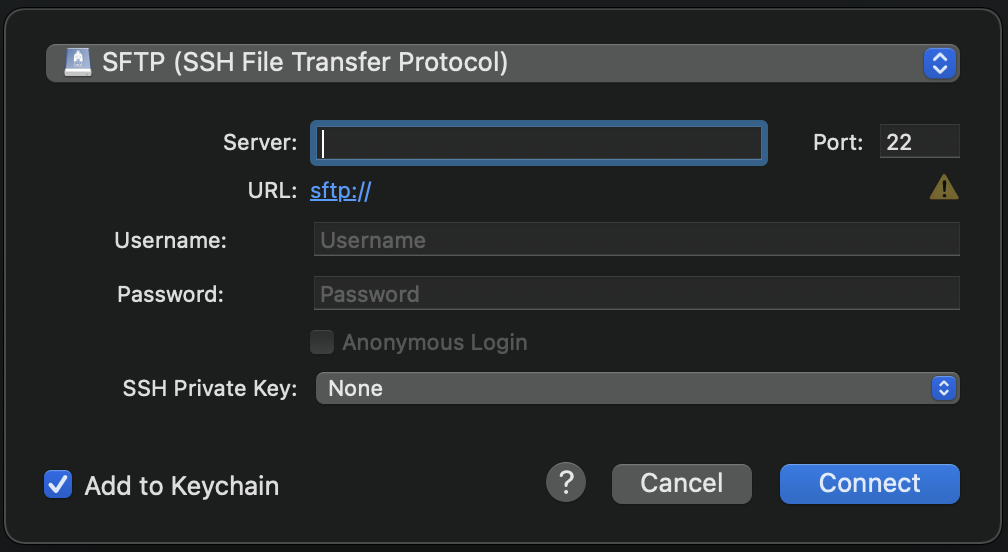
- Select SFTP (SSH File Transfer Protocol) from the dropdown menu and fill in the fields as follows:
| Server | 10.11.99.1 |
|---|---|
| Port | 22 |
| Username | root |
| Password | (Your ReMarkable 2 password) |
Click Connect. You should now see the file system of your ReMarkable 2.
Install fonts on your ReMarkable 2
- In Cyberduck, navigate to /usr/share/fonts/opentype/ttf.
- Upload your desired fonts into this folder.
Customize your ReMarkable 2 sleep screen
- Navigate to /usr/share/remarkable in Cyberduck.
- Delete the file suspended.png. Then upload your own sleep-screen image and rename it to suspended.png.